 ScreenBook.ai
Loading…
A design workspace for AI agents — to present to humans.
ScreenBook turns a folder on your machine into the workspace your agents design in: every screen in a real device frame, live mock data, dark mode, right-to-left, guided demos, and a built-in review loop. Fully offline. Any MCP agent — switch anytime. Yours forever.
npm install -g @screenbook/engine
Get started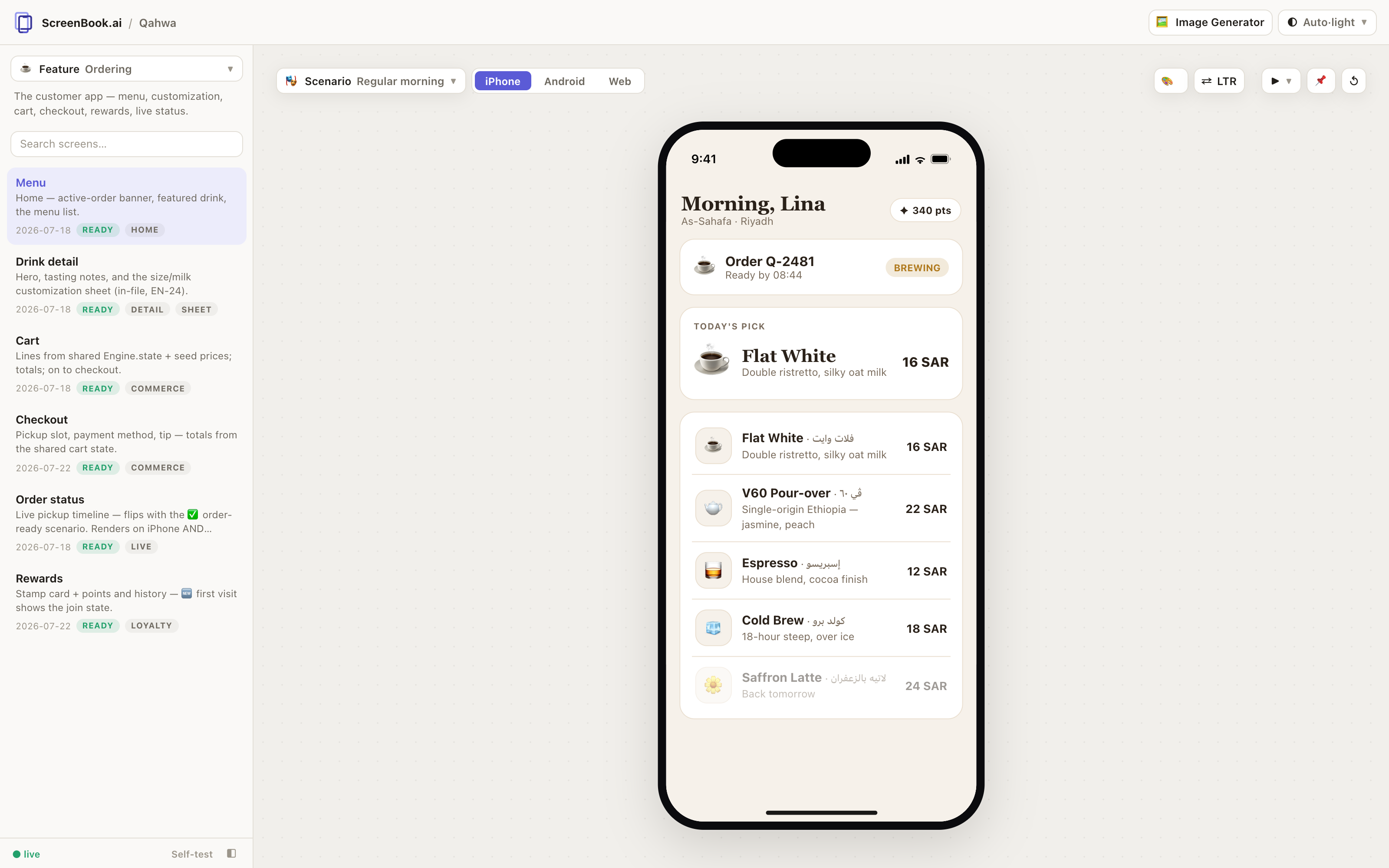
Give it a try
From install to your first screens in two minutes.
~ — zshstep 1 / 4
One global install — Node ≥ 18 is the only requirement.
Why ScreenBook exists
The prototyping phase kept failing the same way: designs lived inside chat windows.
A concept looks great in a conversation — and then reality arrives. You need forty screens, not one. The empty state and the busy state. Arabic right-to-left and dark mode. A co-founder pointing at a button saying “this one, move it.” All of it next week, again, revised.
Chat canvases aren't built for that. Every iteration re-generates a wall of code inside a thread that will eventually scroll away. Nothing is versioned. Nothing runs offline. Reviews happen in screenshots over WhatsApp — and when the design is finally “done,” it's trapped, with no clean way to hand it to the next stage of work.
So ScreenBook is the thing its author needed: a studio where screens are plain files in your repo, agents do the labor through a standard interface, humans do the taste — and the finished prototype becomes the specification for the real app.
Agents do the labor, humans do the taste — and the approved prototype walks straight into production.
The creator of ScreenBook
Keep using Claude — that's the point
ScreenBook isn't a competitor to your AI. It's the workspace your AI works in.
The difference is where the output lives and what you can do with it.
| Designing in a chat window | Designing in ScreenBook |
|---|---|
| One artifact per conversation; multi-screen products fall apart | A whole product: features → screens, organized like your app actually is |
| Output trapped in the thread; gone when context resets | Plain HTML + JSON files in your git repo — diff, branch, revert, forever |
| Needs the vendor’s website, account, and connection | Runs from a folder on your machine — works fully offline |
| Tied to one AI vendor’s canvas | Any agent that speaks MCP — or no agent at all, it’s just files |
| One rendering, usually desktop-ish | Real device frames: iPhone, Android, browser — plus dark/light, LTR/RTL, named data states |
| “Looks right” is the only test | A machine gate: every screen × theme × mode × direction with zero console errors |
| Feedback = screenshots and paragraphs | Pin comments on the screen itself; your agent reads them, fixes, resolves them |
| Regenerates everything each round | Agent edits one small file per screen — faster, cheaper, nothing else breaks |
What working in it feels like
Brief. Review. Pin. Ship the spec.
A concrete example — the specialty-coffee app that ships in examples/qahwa, so you can open exactly this.
Step one
You brief your agent. It builds screens.
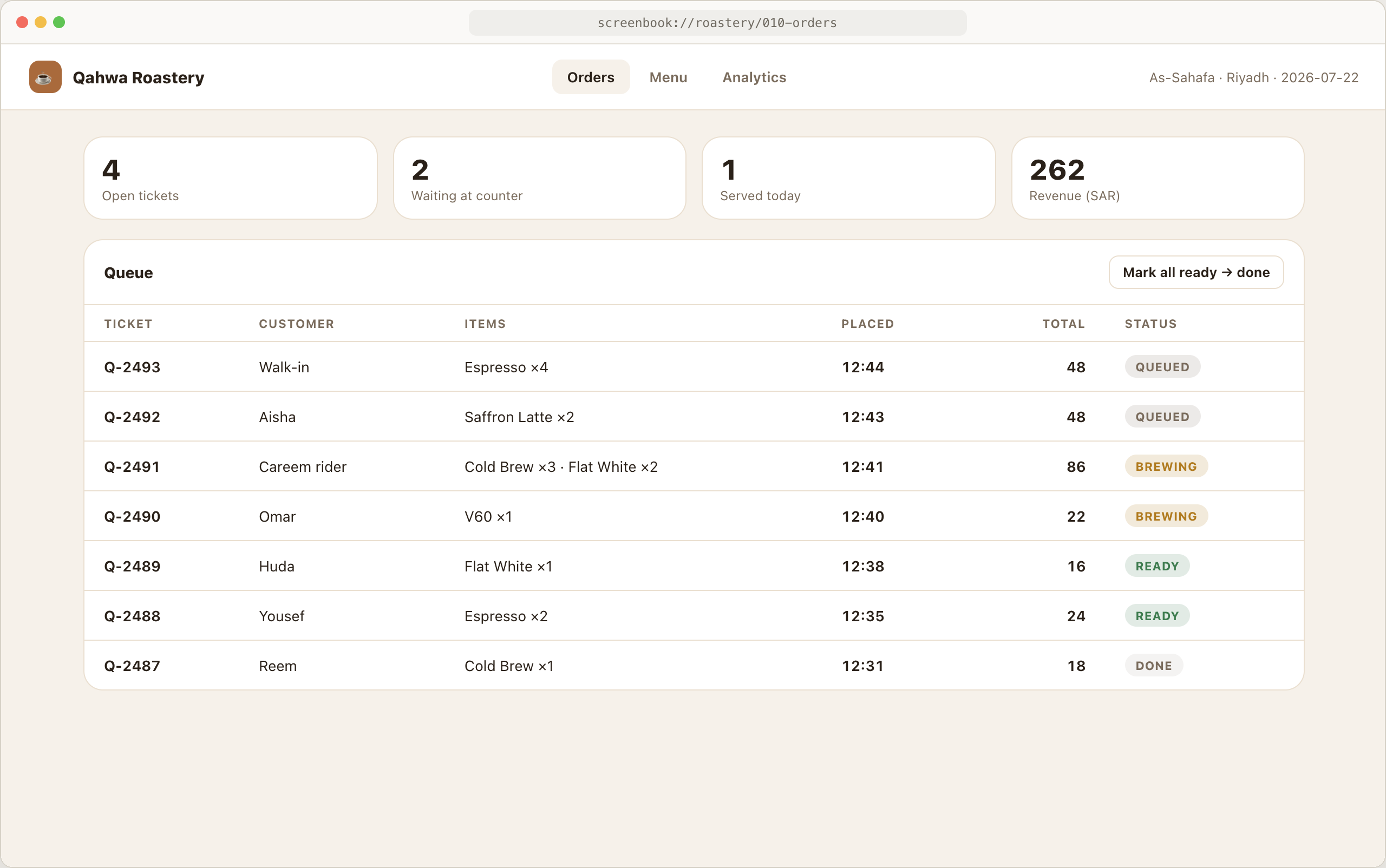
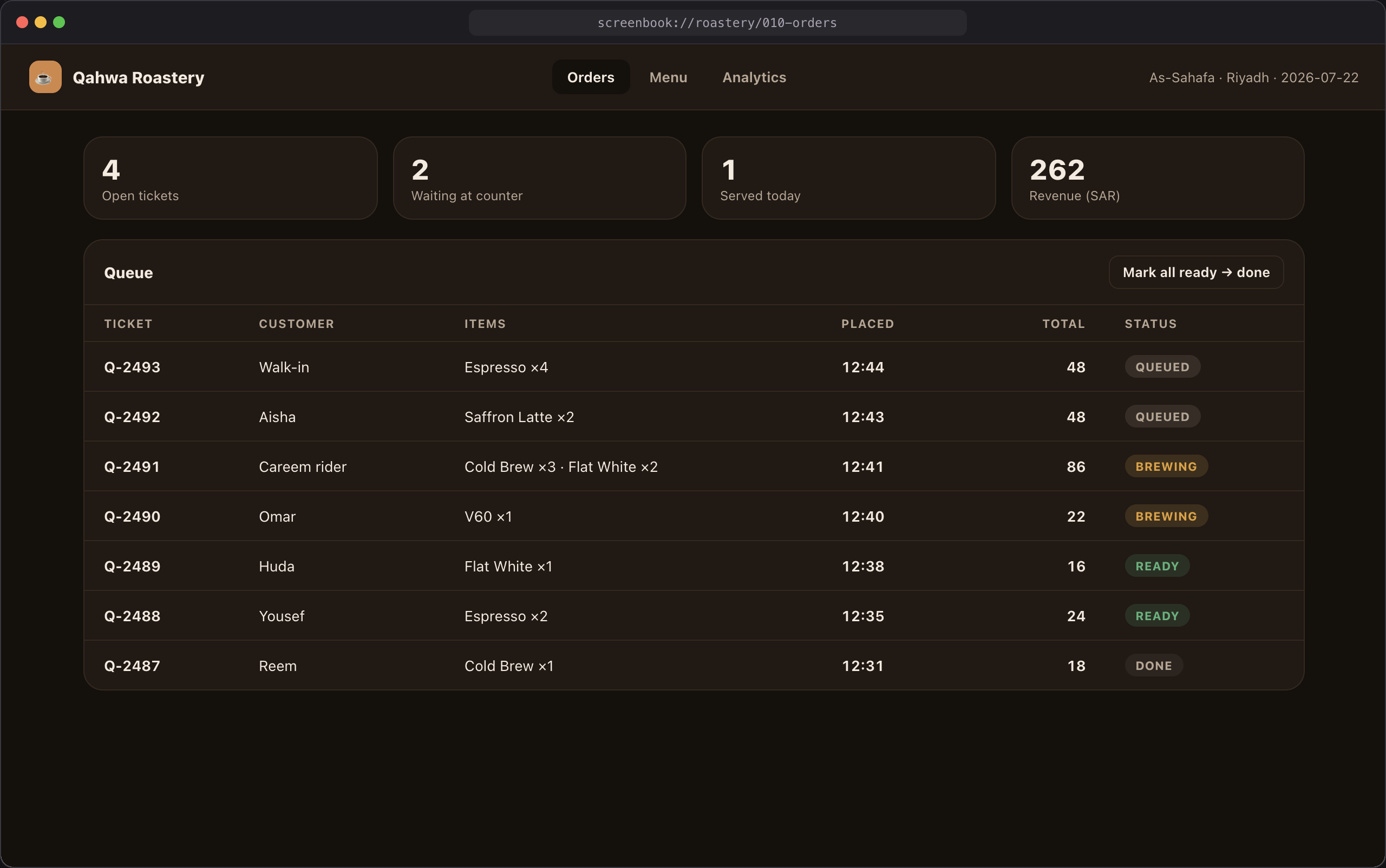
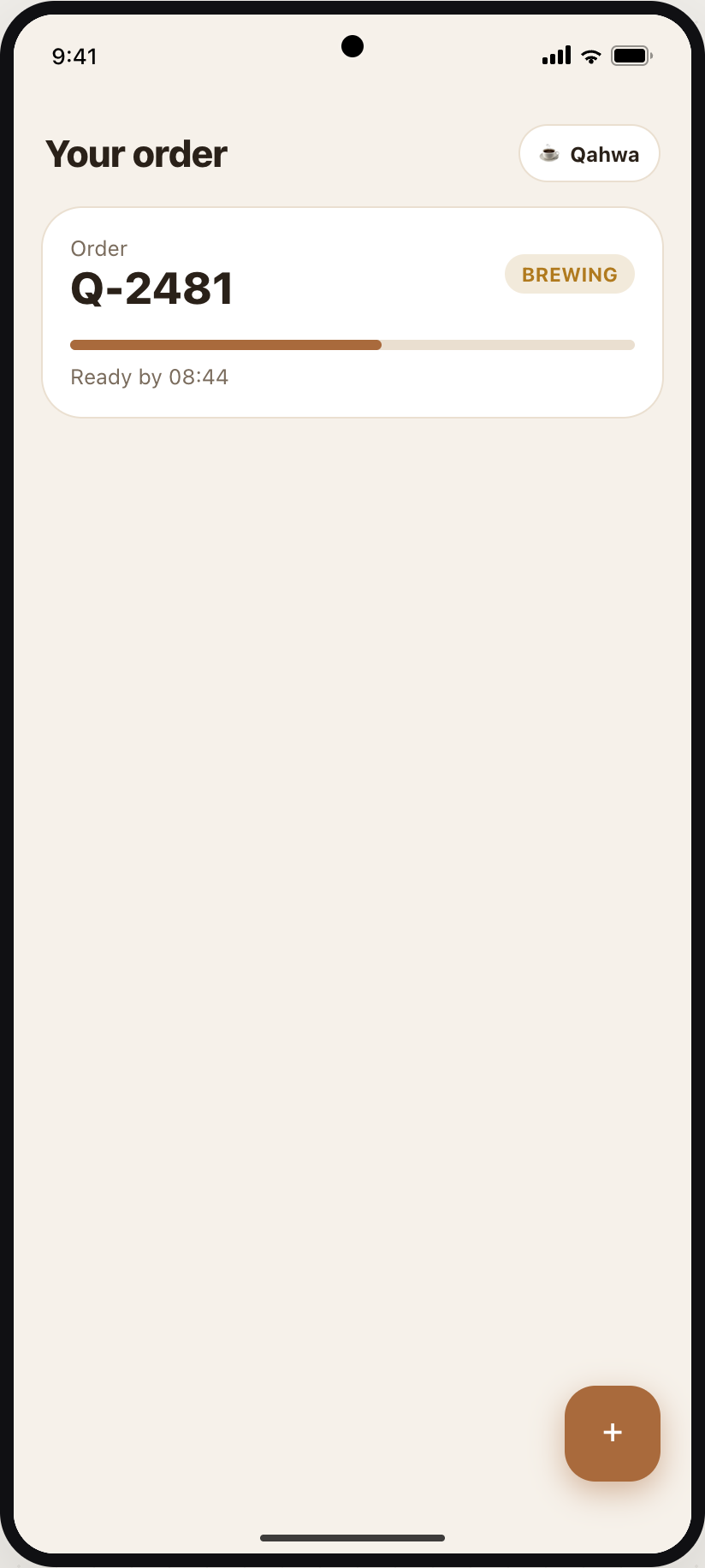
The agent creates each screen as its own small HTML file. They appear in your studio's sidebar as they land — framed in an iPhone, styled by your design tokens, wired to your mock data.
“Create an ordering feature: menu from the seed data, a drink detail screen with a customization sheet, a cart, and a live order-status screen. iPhone frames, match our warm theme.”
Step two
You review it like it's a real app.
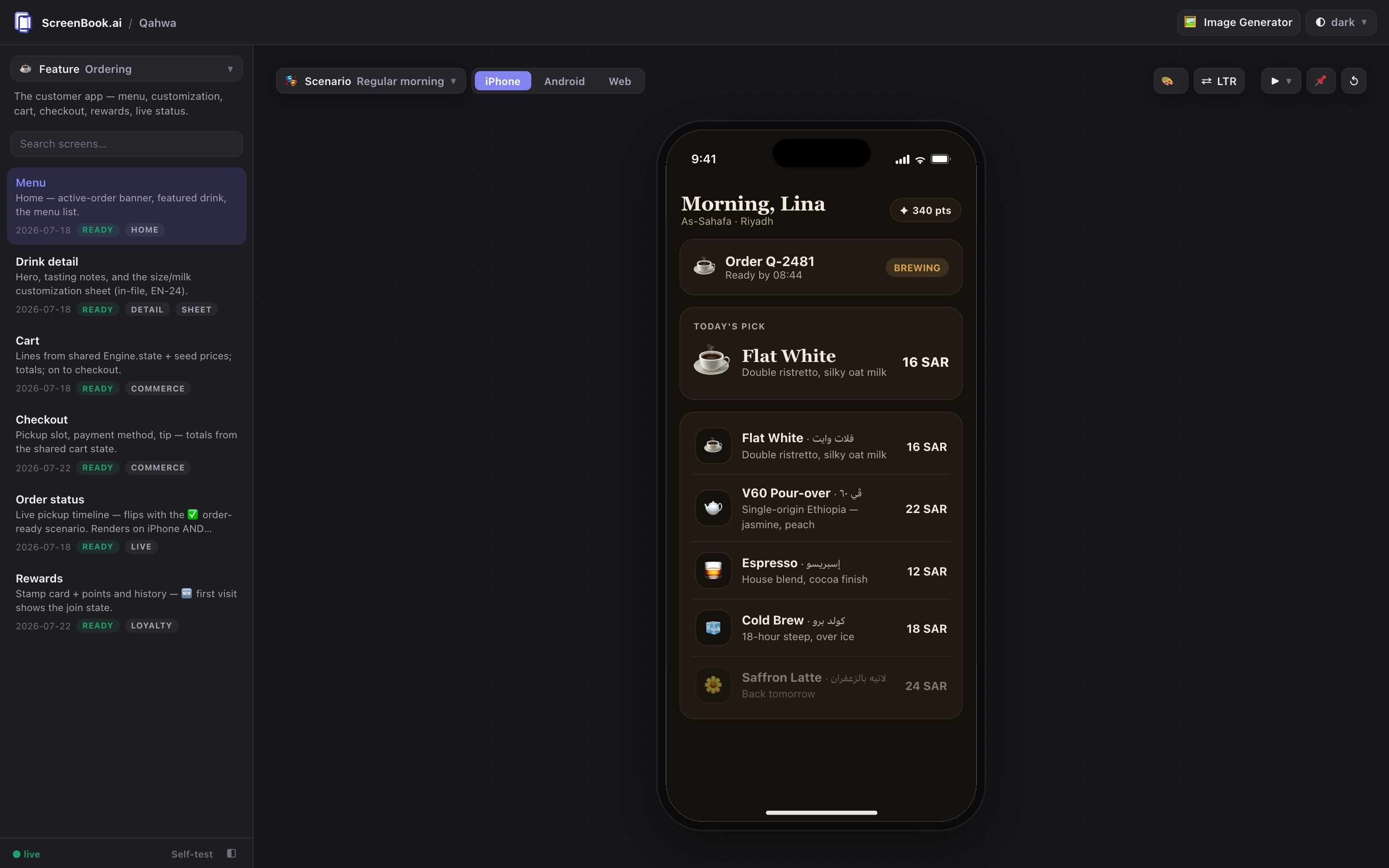
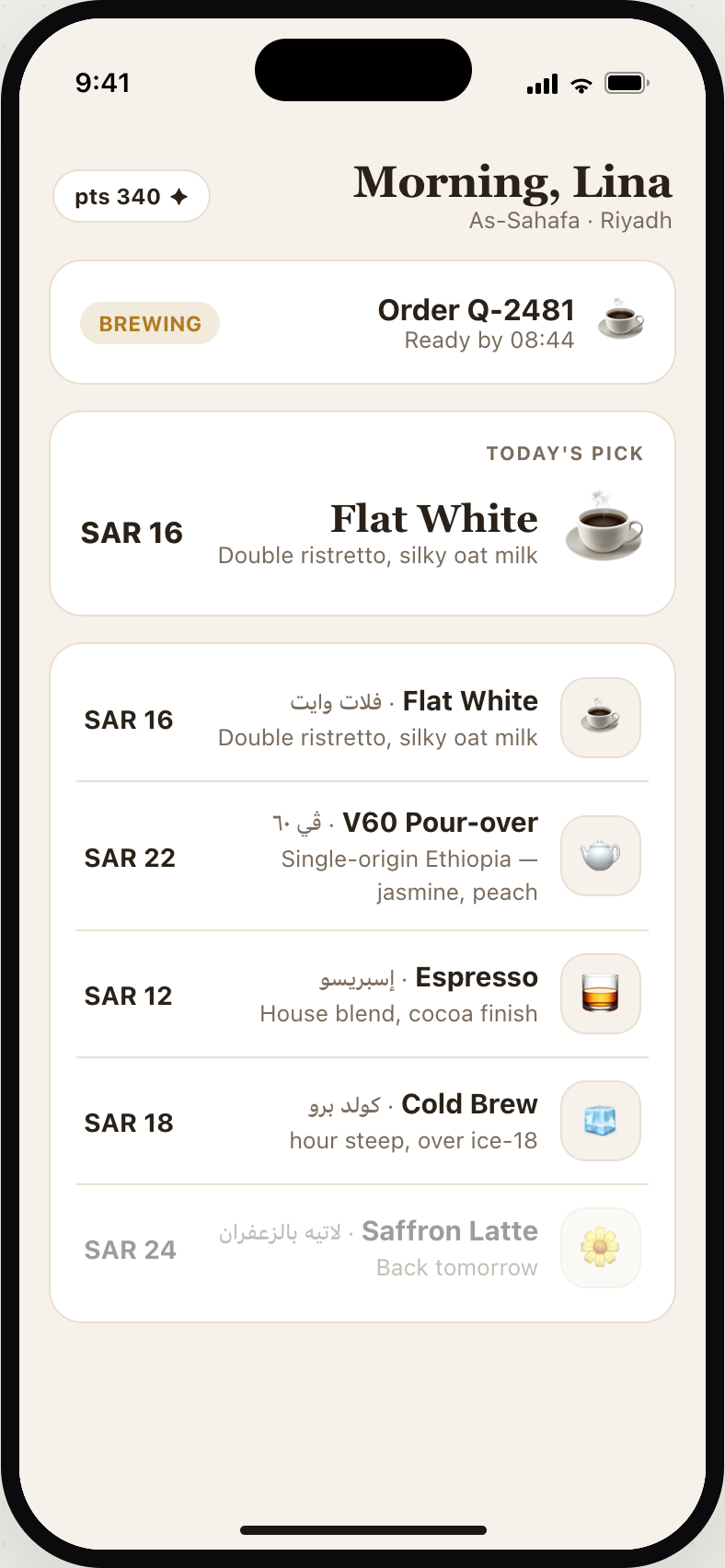
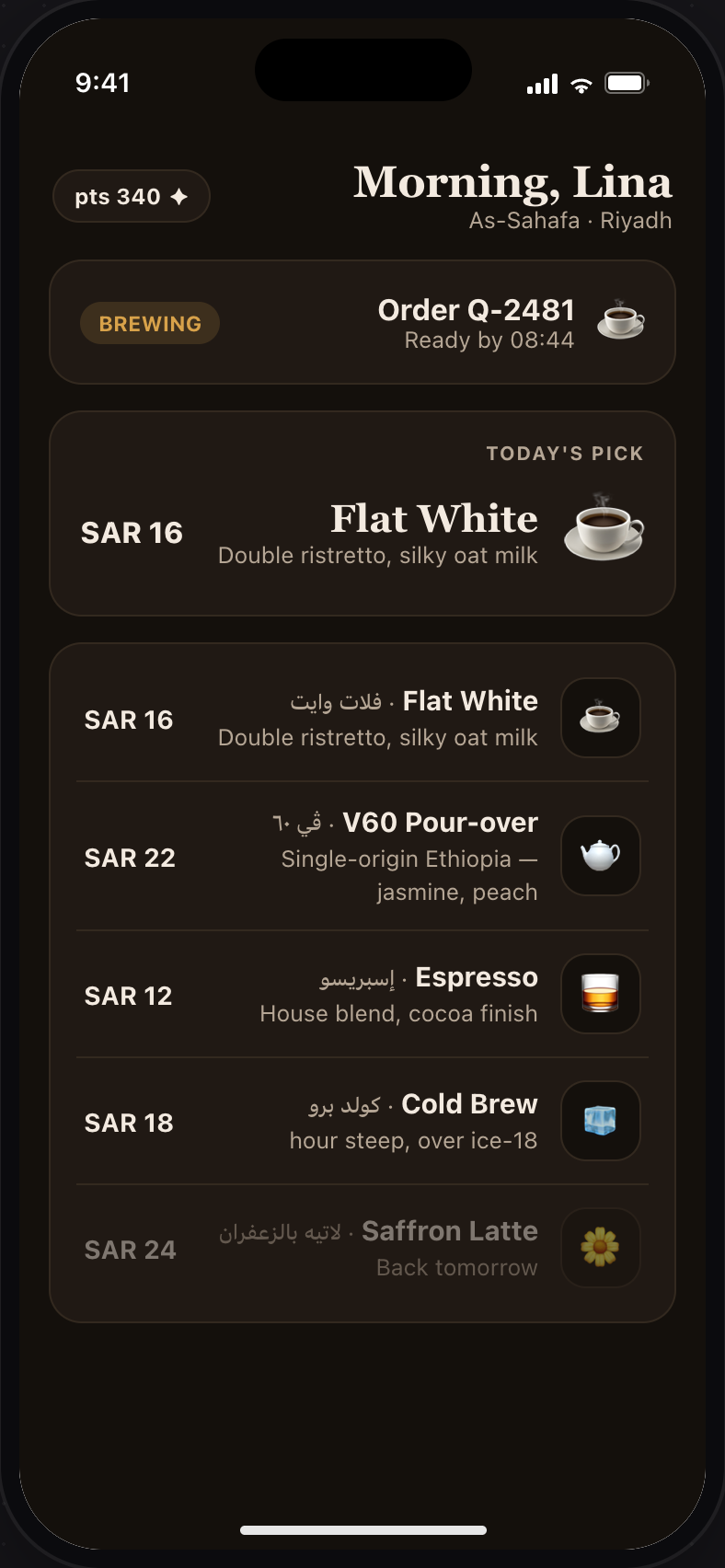
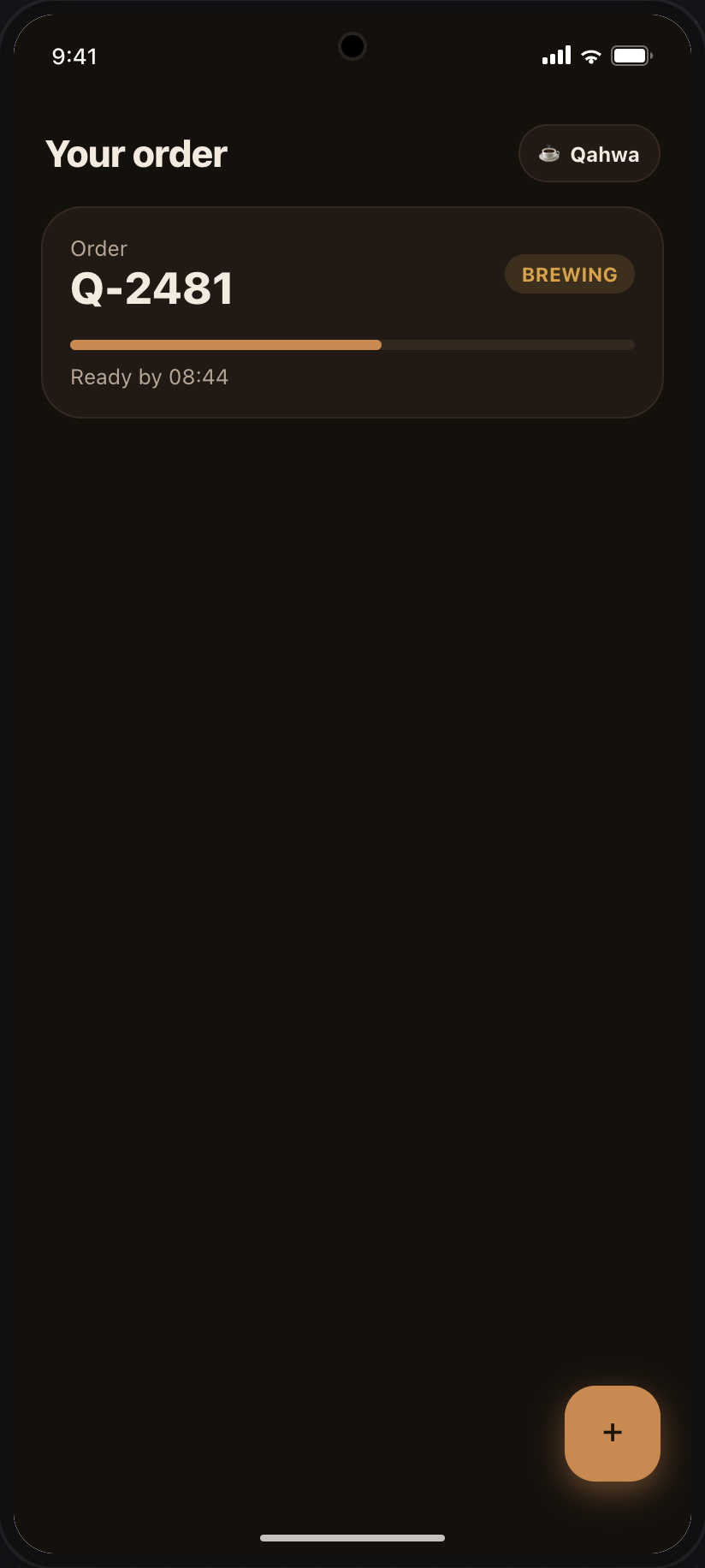
Click through the flow. Flip the 🎭 scenario from Steady morning to Friday rush — the same screens now show the busy state honestly. Toggle dark mode. Switch direction and watch the layout mirror right-to-left.
Nothing is staged; the “ready by 08:44” timestamp is computed from today, every time you demo.
Step three
Your team comments on the pixels, not around them.
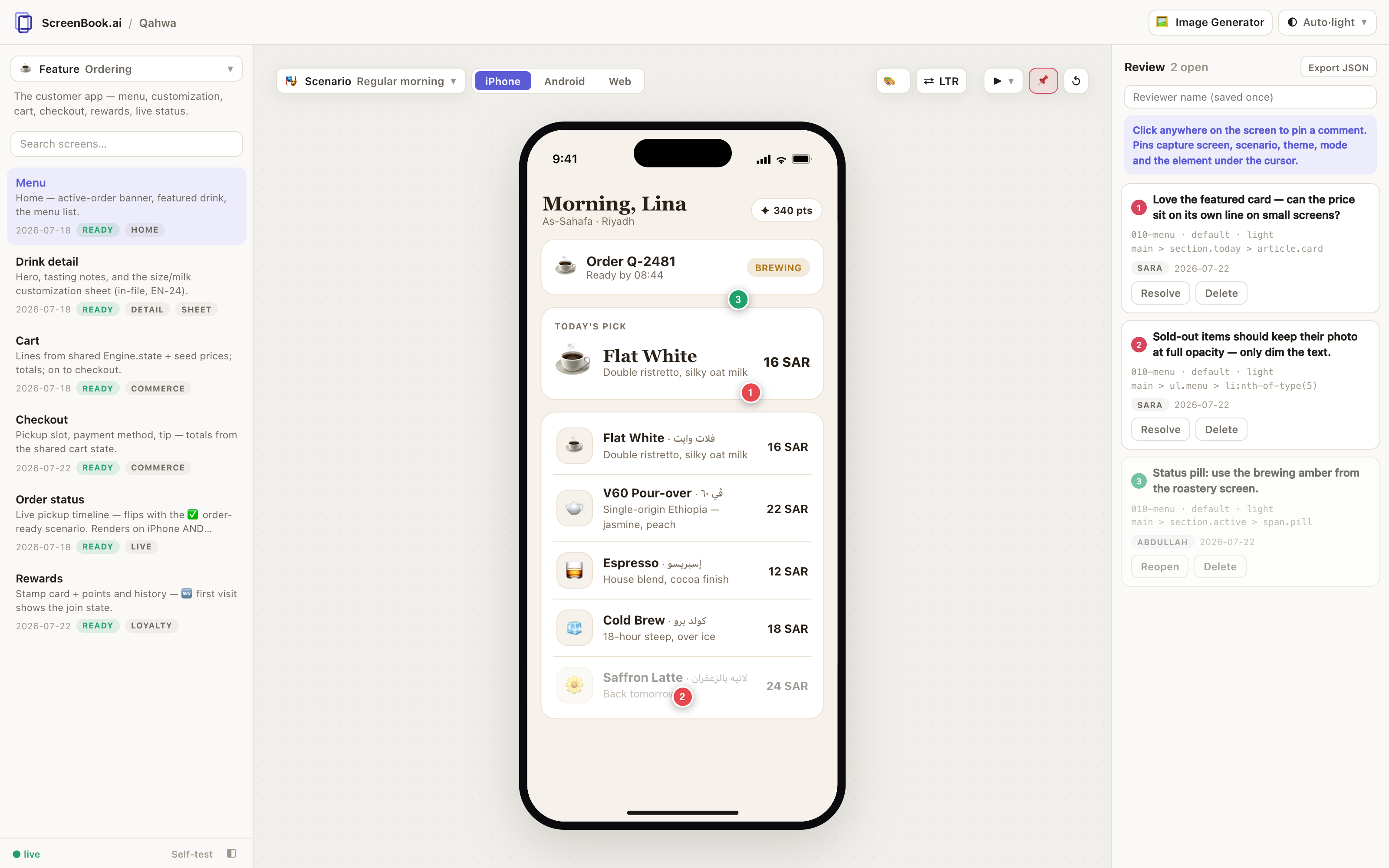
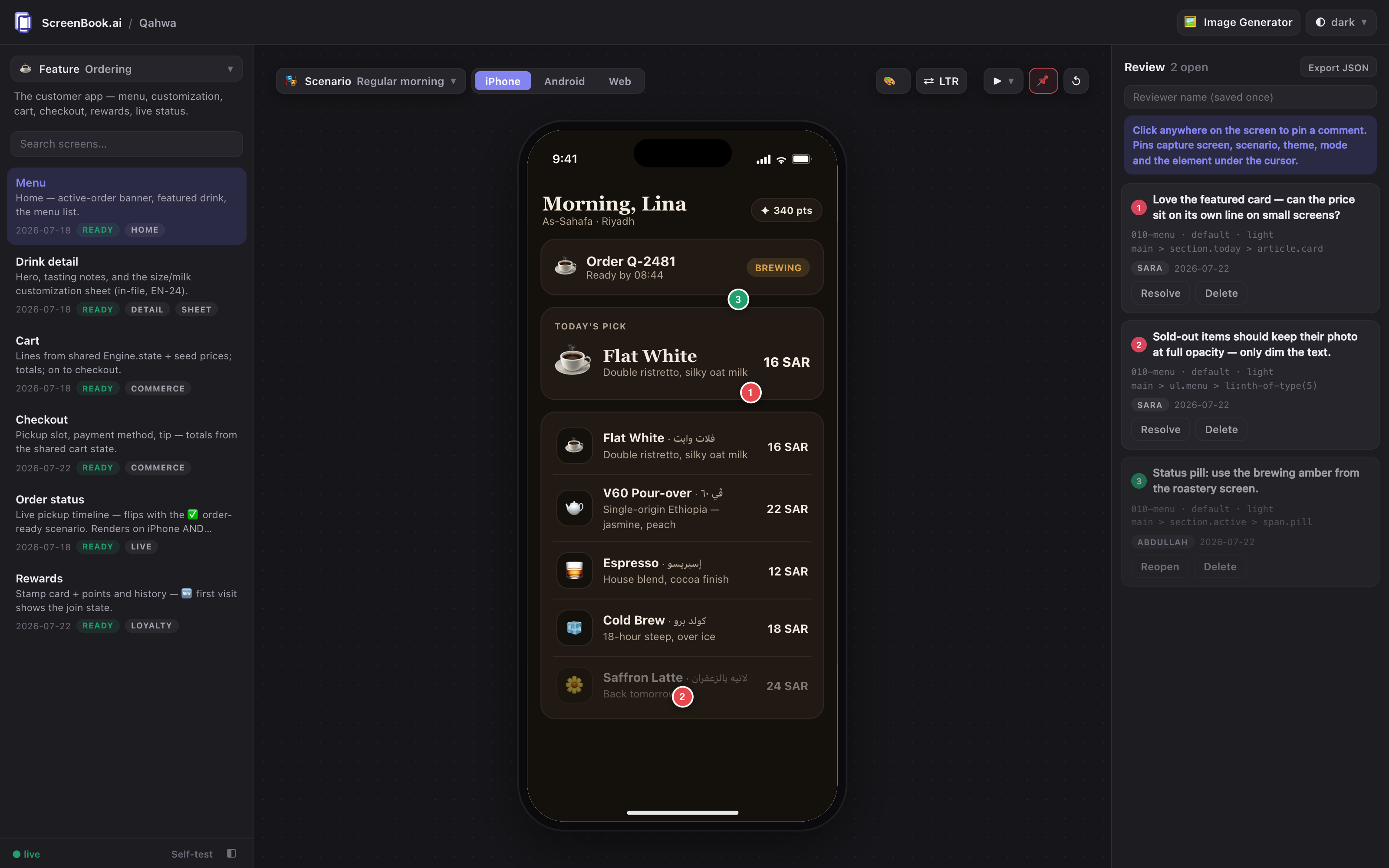
Turn on 📌 Review Mode and click anywhere: each pin captures the screen, the data state, the theme, the mode, the direction, and the exact element under the cursor. Then tell your agent:
“Read the open review comments, apply the fixes, and resolve them.”
It has tools for exactly that.
Step four — the one that pays for everything
The finished screen becomes the spec for the real app.
A screen that survives review is a complete, self-contained HTML file: exact layout and spacing, your design tokens, final copy in both languages, all interaction states. Point your agent at it:
“Take features/order/screens/030-cart.html and build it as a SwiftUI view. Use our design tokens. Preserve the empty state exactly as the first-visit scenario shows it.”No Figma-to-code guesswork. The same works for Jetpack Compose, React Native, Flutter, or web components.
The feature map
Zoom out. Every screen, and how they really connect.
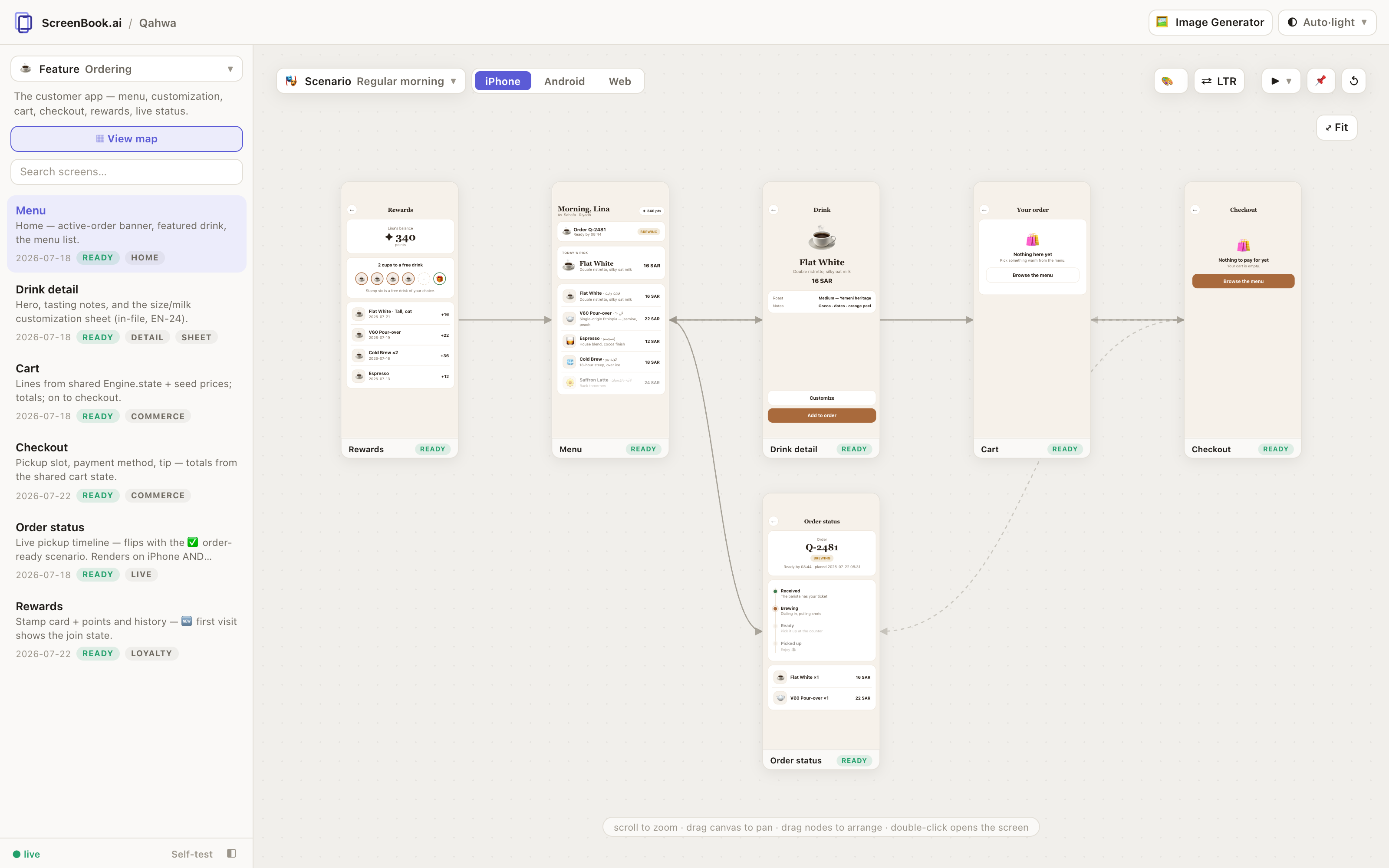
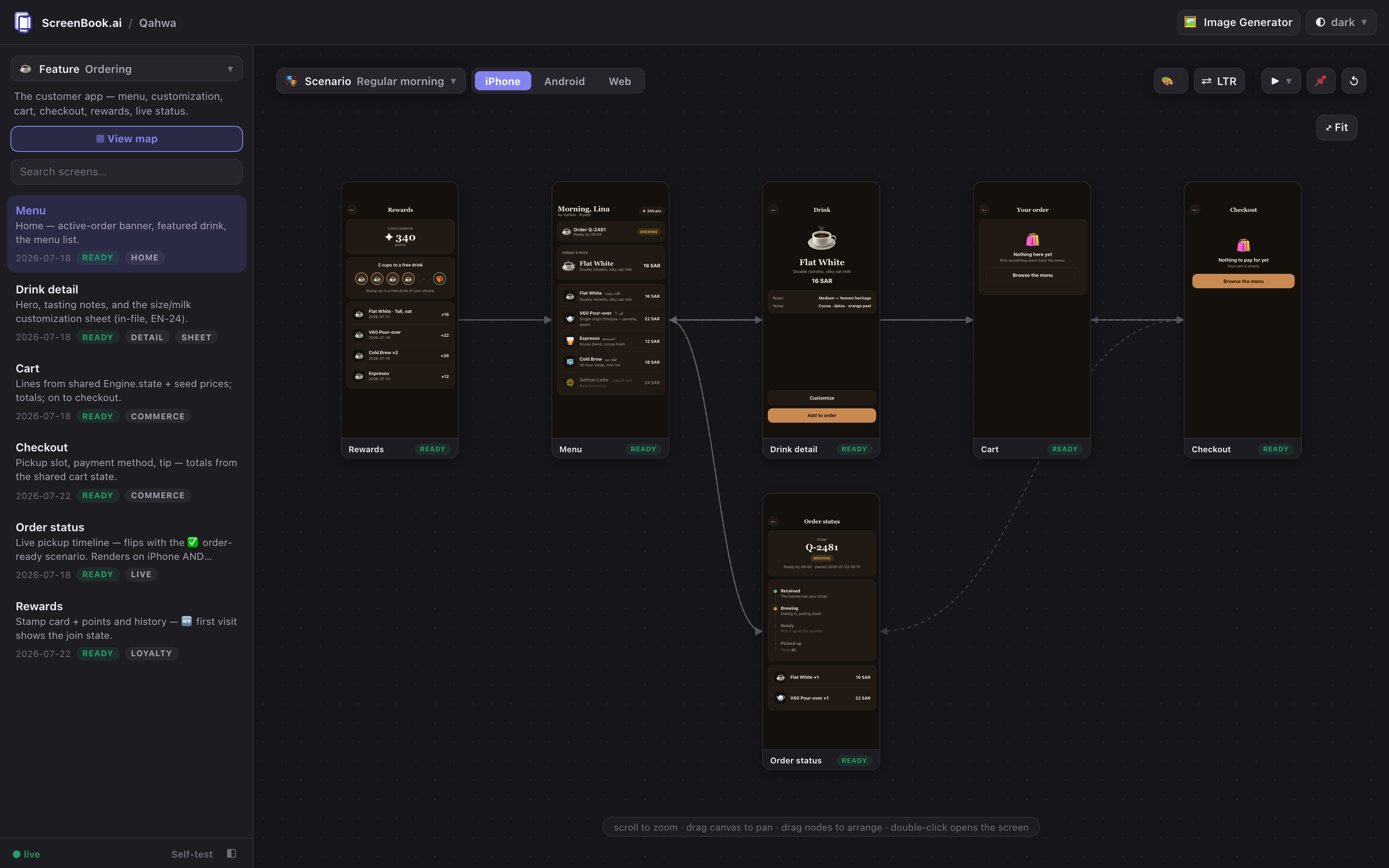
One click turns a feature into a Miro-style canvas: every screen as a live mini frame, linked by its actual navigation — not a diagram someone drew, the one the code declares.
Edges you never draw
The map is scanned from the screens themselves.
Every literal data-go and Engine.go() target lands in the manifest at regen, and the map draws them as arrows — dashed for back-links — so the picture can't drift from the prototype. Point a screen at another feature (data-go="order/010-menu") and it becomes a named card; click it to jump to that feature's map.
Drag nodes to tell the story your way — layouts persist per feature, shared with your agent in map.json. Double-click any screen to dive back into the studio; scenario, theme, and device switches re-render the whole canvas live.
What's in the box
Everything a design review needs, nothing a build pipeline wants.
Real device frames
iPhone with Dynamic Island, Android punch-hole, browser chrome, or bare — scaled to fit, screenshot-ready.
Data scenarios
Named states over your mock data — brand-new user, mid-trip, after close — with {{today+3}} date tokens so time-based demos are always true.
Theme Lab
Every design token visible and editable live against your screens; Save writes the JSON back to disk. Dark mode is a delta, not a fork.
Guided flows
Captioned walkthroughs for stakeholder demos. Every step is a shareable URL that opens in the exact state — screen, data, theme, direction.
Review Mode
Pin comments on the pixels. Each pin captures screen, scenario, theme, mode, direction, and the element under the cursor — synced to a JSON file agents read.
The feature map
Zoom out to a canvas of every screen as a live mini frame, connected by its real navigation — drag to arrange, double-click to dive in, cross-feature links become clickable cards.
Multilingual by design
Side-by-side strings per feature, and right-to-left as a first-class toggle — not an afterthought.
App mode
Already have a working single-page prototype? One command mounts the whole app inside the studio without touching its files.
A machine-verified gate
validate renders every screen in every theme × mode × direction and fails on any console error. Green means done — for humans and agents alike.
AI image assets
Screens need imagery — icons, heroes, avatars. Agents generate them in place with Nano Banana (Gemini), ChatGPT, or Grok; every image lands in a sorted, referenced library.
CLI + 21 agent tools
Everything is scriptable and agent-operable: create screens, update data, restyle themes, generate images, take framed screenshots, run the gate.
ScreenBook Image Generator
When a screen needs an image that doesn't exist, the agent makes one.
Ask for a feature that needs an icon, a hero photo, an avatar — and the agent generates it without leaving the workspace, saves it into the project, and wires it into the screen. Works inside ScreenBook planning and standalone: AI agents can call it from any directory and the images land right there.
Generated with this exact command
One icon, both modes — the edit workflow in action.
The icon on the right was generated by ScreenBook, then edited by ScreenBook — “change ONLY the background to dark charcoal” — so light and dark mode get matching assets. Toggle this site's theme and watch it switch. Every generation is logged in images/manifest.json with its prompt, provider, model, and feature — timestamped filenames keep the whole library chronologically sorted, and list_images filters it.
screenbook tool generate_image --prompt "flat minimal coffee cup app icon, warm terracotta on cream, no text" --feature order --aspect 1:1
Three providers, one interface — switch per call, per environment variable, or once via screenbook config set image.provider …. New model versions are a config value, not an update. API keys stay in your environment; they are never written to disk.
Nano Banana · Google GeminiChatGPT · OpenAI gpt-imageGrok · xAI Imagine

The same tool, bigger canvases
Heroes, avatars, product shots — sized for the screen that needs them.
Aspect ratios and a resolution ladder (512 → 4K) map to each provider's strengths: draft at 1K while the prompt settles, then render the final at 4K. Editing an existing image preserves everything you don't mention — and the manifest records the lineage.
“The order feature needs a hero image for the menu screen — cozy coffee shop, morning light, 16:9 — and a barista avatar for the header.”

Built agents-first
Any agent that speaks MCP can author screens.
The MCP server exposes the full authoring surface — and the tool descriptions teach the contract, so agents never need to read the engine's source. Every write is validated, atomic, and manifest-refreshing.
claude mcp add screenbook -- npx -y @screenbook/engine mcp --root .
21 tools, one contract
list_featureslist_screensget_screenadd_screenupdate_screenremove_screenadd_featureadd_appget_dataset_dataget_themeset_themeget_flowsset_flowsget_review_commentsresolve_commentvalidatescreenshotgenerate_imagelist_imagesremove_imageTwo commands to your own studio.
Node ≥ 20 and nothing else — no cloning, no per-project installs. Complete demo projects ship inside the package if you'd rather explore first.
screenbook init && screenbook serve
Read the docs